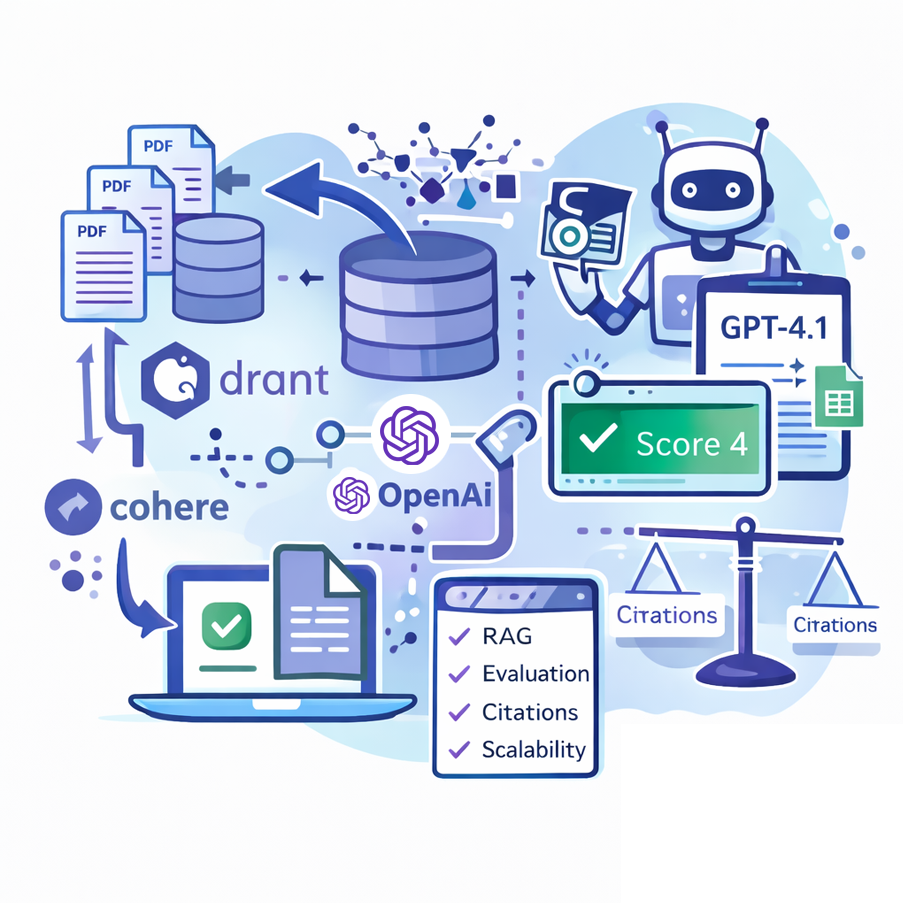
🤖📈 This workflow is my personal solution for the Agentic Arena Community Contest , where the goal is to build a Retrieval-Augmented Generation (RAG) AI agent capable of answering questions based on a provided PDF knowledge base.
Key Advantages
- ✅ End-to-End RAG Implementation Fully automates the ingestion, processing, and retrieval of knowledge from PDFs into a vector database.
- ✅ Accuracy through Multi-Layered Retrieval Combines embeddings, Qdrant search, and Cohere reranking to ensure the agent retrieves the most relevant policy information.
- ✅ Robust Evaluation System Includes an automated correctness evaluation pipeline powered by GPT-4.1 as a judge, ensuring transparent scoring and continuous improvement.
- ✅ Citation-Driven Compliance The AI agent is instructed to provide citations for every answer , making it suitable for high-stakes use cases like policy compliance.
- ✅ Scalability and Modularity Can easily integrate with different data sources (Google Drive, APIs, other storage systems) and be extended to new use cases.
- ✅ Seamless Collaboration with Google Sheets Both the evaluation set and the results are integrated with Google Sheets, enabling easy monitoring, iteration, and reporting.
- ✅ Cloud and Self-Hosted Flexibility Works with self-hosted Qdrant on Hetzner, Mistral Cloud for OCR, and OpenAI/Cohere APIs, combining local control with powerful cloud AI services.
How it Works
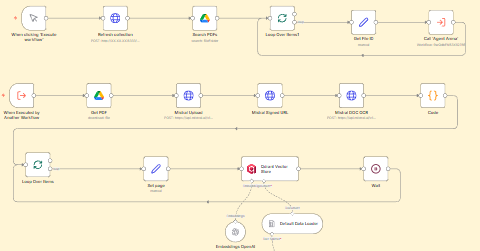
Knowledge Base Ingestion (The "Setup" Execution):
- When started manually, the workflow first clears an existing Qdrant vector database collection.
- It then searches a specified Google Drive folder for PDF files. For each PDF found, it performs the following steps:
- Uploads the file to the Mistral AI API.
- Processes the PDF using Mistral's OCR service to extract text and convert it into a structured markdown format.
- Splits the text into manageable chunks.
- Generates embeddings for each text chunk using OpenAI's model.
- Stores the embeddings in the Qdrant vector store, creating a searchable knowledge base.
Agent Evaluation (The "Testing" Execution):
- The workflow is triggered by an evaluation Google Sheet containing questions and correct answers.
- For each question, the core AI Agent is activated. This agent:
- Uses the RAG tool to search the pre-populated Qdrant vector store for relevant information from the PDFs.
- Employs a Cohere reranker to refine the search results for the highest quality context.
- Leverages a GPT-4.1 model to generate an answer based strictly on the retrieved context.
- The agent's answer is then passed to an "LLM as a Judge" (another GPT-4.1 instance), which compares it to the ground truth answer from the evaluation sheet.
- The judge provides a detailed score (1-5) based on factual correctness and citation accuracy.
- Finally, both the agent's answer and the correctness score are saved back to a Google Sheet for review.
Set up Steps
To implement this solution, you need to configure the following components and credentials:
Configure Core AI Services:
- OpenAI API Credentials: Required for the main AI agent, the judge LLM, and generating embeddings.
- Mistral AI API Credentials: Necessary for the OCR service that processes PDF files.
- Cohere API Credentials: Used for the reranker node that improves retrieval quality.
- Google Service Accounts: Set up OAuth for Google Sheets (to read questions and save results) and Google Drive (to access the PDF source files).
Set up the Vector Database (Qdrant):
- This workflow uses a self-hosted Qdrant instance. You must deploy and configure your own Qdrant server.
- Update the Qdrant Vector Store and RAG nodes with the correct API endpoint URL and credentials for your Qdrant instance.
- Ensure the collection name ( agentic-arena ) is created or matches your setup.
Connect Data Sources:
- PDF Source: In the "Search PDFs" node, update the folderId parameter to point to your own Google Drive folder containing the contest PDFs.
- Evaluation Sheet: In the "Eval Set" node, update the documentId to point to your own copy of the evaluation Google Sheet containing the test questions and answers.
- Results Sheet: In the "Save Eval" node, update the documentId to point to the Google Sheet where you want to save the evaluation results.